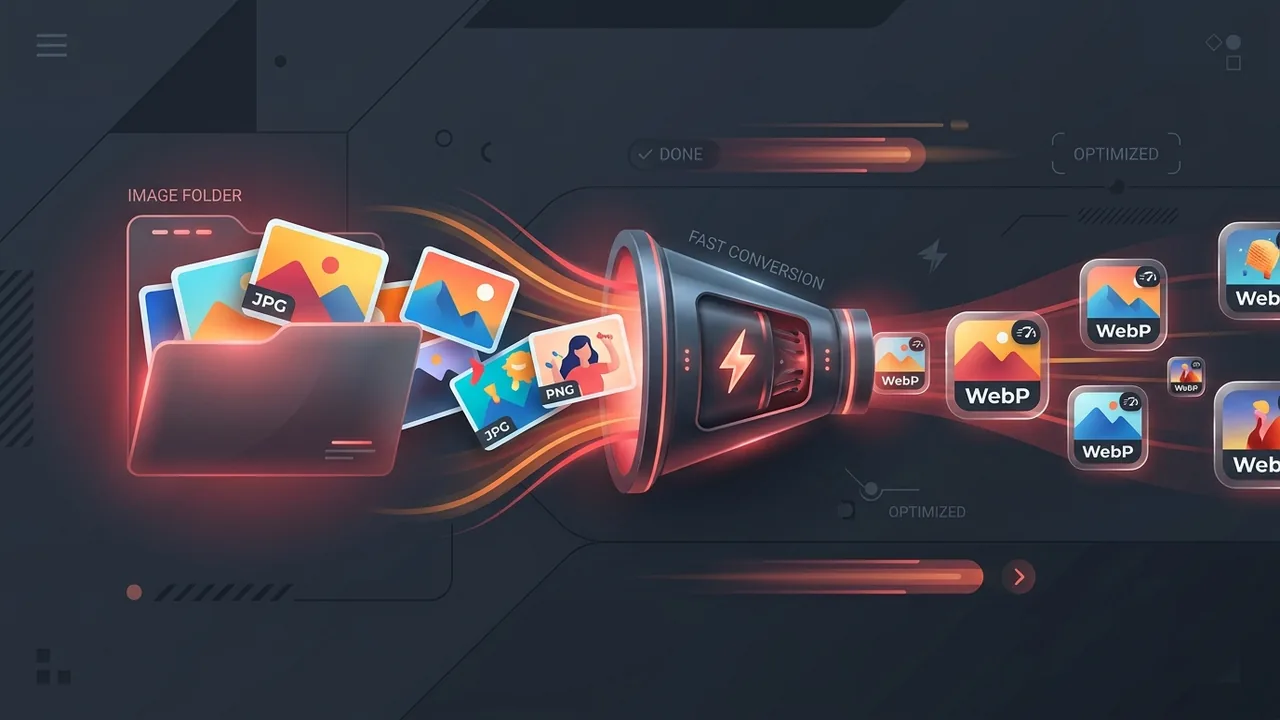
How to Convert an Entire Folder of Images to WebP in Under 1 Minute
If you have a folder full of photos (JPG, PNG, GIF, or HEIC) and want to convert all of them into lightweight WebP format without installing complicated tools or uploading private files to unknown servers, follow these 3 simple steps:
Open the TARGETROOT Image Tool and drag your photos into the box.
Set format to WebP and keep quality around 80%–85% for optimal results.
Click Download All (ZIP). All converted photos are ready instantly in one neat folder.
Why Should You Convert Your Images to WebP?
Whether you are running an online store, managing a personal blog, uploading photos to school or work portals, or just trying to save storage space on your computer, image file sizes add up quickly.
WebP is a modern image format created by Google designed specifically for the web. It delivers significant advantages over standard JPEG and PNG files:
Up to 80% Smaller Files
A folder of photos that takes up 100 MB in JPG can easily shrink to just 20 MB in WebP without any noticeable drop in image sharpness.
Crystal-Clear Quality
WebP uses advanced compression algorithms so your portraits, product pictures, and graphics stay vivid and sharp on phones, tablets, and laptops.
Universal Compatibility
Works seamlessly on Google Chrome, Apple Safari, Microsoft Edge, Mozilla Firefox, Android, and iOS devices.
Real-World Comparison: Folder Size Before & After Conversion
Here is what happens when you convert a typical folder of everyday images to WebP at recommended settings:
| Folder Content | Original Format | Original Size | WebP Size | Space Saved |
|---|---|---|---|---|
| E-Commerce Products (50 items) | JPG / JPEG | 140 MB | 22 MB | 84% Saved |
| Logos & Transparent Badges (30 items) | PNG (Transparent) | 48 MB | 7.5 MB | 84% Saved |
| Phone Camera Photos (20 items) | HEIC / JPG | 62 MB | 12 MB | 80% Saved |
| Total Folder (100 Photos) | Mixed Formats | 250 MB | 41.5 MB | 83% Total Savings |
Method 1: The Easiest Online Batch Converter (Zero Installation & 100% Private)
The fastest and safest method for most people is using an in-browser batch converter. You don't have to download any software, register an account, or worry about your private photos being sent to a third-party server.
How to do it step by step:
- Open the converter: Go to the free TARGETROOT Batch Image Compressor & Converter.
- Select all your photos: Open your folder on your computer, press Ctrl + A (Windows) or Cmd + A (Mac) to select all images, and drag them straight into the upload box.
- Choose WebP format: Select WebP as your output format. Keep the quality slider at around 80%–85% for the best balance of small size and high quality.
- Click Download ZIP: Within seconds, your images are converted right inside your browser. Click the download button to save all converted WebP files packaged in a single ZIP folder.
Method 2: Free Desktop App for Windows & Mac (XnConvert)
If you frequently need to convert massive folders with thousands of photos offline without relying on an internet connection, a free graphical desktop app like XnConvert is an excellent choice.
Simple 4-Step Process:
Download and open XnConvert (Free for Windows and Mac).
Click Add Folder on the first tab and select the folder containing your photos.
Go to the Output tab and select WEBP - WebP under the Format dropdown.
Click the big Convert button at the bottom right. All your photos will be converted in seconds!
Method 3: Right-Click Finder Quick Action on Mac
If you are on a Mac, you can set up a one-time Quick Action using the built-in Apple Shortcuts app so that you can convert any folder or selection of pictures simply by right-clicking on them!
How to set up the 1-Click Right-Click Shortcut on Mac:
- Open the built-in Shortcuts app on your Mac.
- Click the + (New Shortcut) button and name it "Convert to WebP".
- In the right sidebar, search for "Convert Image" and drag it into the workspace.
- Set the conversion format dropdown to WebP.
- Add the "Save File" action right below it.
- In the Shortcut Settings (info icon on right), check "Use as Quick Action" > Finder.
Method 4: Free Bulk Image Converters for Windows (IrfanView / FastStone)
Windows users who prefer lightweight desktop utilities can use trusted free tools like FastStone Image Viewer or IrfanView:
FastStone Image Viewer
Select your image folder, press F3 to open the Batch Convert window, choose WebP format, and click Convert.
IrfanView Batch Mode
Press B on your keyboard, select your folder, set output format to WebP, and click Start Batch.
What Quality Slider Setting Should You Use?
Most conversion tools have a quality slider from 1% to 100%. Here is a simple guide to choosing the right setting for your needs:
Casual Social Media & Chat
Best when you want maximum file compression to send lots of photos over WhatsApp, email, or messaging apps quickly.
Websites, Blogs & Stores
The sweet spot. Produces files up to 85% smaller with zero visible difference in clarity or sharpness.
Portfolios & Artwork
Perfect for photography websites, wedding albums, and digital art where every tiny pixel detail matters.
Logos & Graphics
Best for transparent PNG logos, icons, and diagrams to keep sharp edges without any compression blurring.
Frequently Asked Questions (FAQs)
Can I convert an entire folder to WebP without installing any app?
Yes! You can use the free TARGETROOT Image Converter. You simply drag and drop your photos into your browser window, choose WebP format, and download all converted photos as a neat ZIP file.
Will my photos lose transparent backgrounds when converted to WebP?
No. Unlike JPG (which always turns transparent areas white or black), WebP fully supports transparency (alpha channel). Your PNG logos and transparent graphics will stay completely transparent in WebP format.
How do I open and view WebP files on Windows or Mac?
Both Windows 11/10 and macOS natively open and preview WebP images in the default Photos or Preview app. You can also open any WebP image by dragging it into Google Chrome, Safari, or Microsoft Edge.
Can I convert WebP images back to JPG or PNG later if needed?
Yes! You can easily convert WebP images back to JPG or PNG at any time using the same online converter tool or desktop apps.
Is it safe to convert private photos using online tools?
With TARGETROOT, it is 100% safe because the conversion runs directly inside your web browser using modern WebAssembly technology. Your images are never uploaded to any remote server or stored anywhere online.
Related Tools & Guides
Batch Image Compressor & WebP Tool
Compress and convert images locally in your browser with zero uploads.
Comparison GuideJPG vs PNG vs WebP vs AVIF
Learn which image format is best for your website and daily use.
TutorialConvert Any Image to WebP Unlimited
Full guide on single and batch conversion without signups or limits.
Was this article helpful?
Your feedback helps us create better content.